Table of Contents
Why Multi-Author Word Documents Have Formatting Problems
When multiple people contribute to a single Word document, each person brings their own formatting habits — and often their own version of Word, their own default font settings and their own approach to applying headings. The result is a document that may look roughly consistent at a glance but is structurally inconsistent underneath.
The most common mechanism is pasting. When a contributor drafts their section in a separate document and pastes it into the main file, Word — by default — retains the source formatting. The pasted text brings its font, its line spacing, its paragraph settings and sometimes its heading styles with it. If that contributor was using a different template, a different version of Word, or simply different personal settings, the imported formatting will conflict with the rest of the document.
Over multiple rounds of contribution and revision, these conflicts accumulate. By the time the document reaches its final version, it may have four or five different body fonts, heading sizes that are visually similar but technically different, tables formatted independently by each contributor and spacing that varies subtly from section to section.
Understanding why this happens is covered in more detail in our guide to why Word documents look different on every computer — many of the same underlying causes apply.
Signs Your Document Has Multi-Author Formatting Issues
Some multi-author formatting problems are immediately visible. Others only become apparent when you look more closely, or when something goes wrong — such as the table of contents failing to update correctly. Here are the most common signs.
| Sign | What it indicates | Severity |
|---|---|---|
| Headings that look the same but are different sizes | Manual formatting applied instead of Word Styles | High — breaks TOC and navigation |
| Body text that appears consistent but has mixed fonts | Pasted content from different source documents | Medium — visible to a professional reader |
| Spacing that is slightly different between sections | Different paragraph spacing settings per contributor | Medium — creates visual inconsistency |
| Tables that each look slightly different | Independently formatted by each contributor | Medium — undermines professional presentation |
| Table of contents entries that do not match headings | Headings not applied via Word Styles | High — immediately apparent to any reader |
| Page numbers that restart or behave unexpectedly | Incorrect section breaks introduced during compilation | High — requires section break knowledge to fix |
If your document shows several of these signs, the total time required to fix them manually is likely to be significant — particularly if the document is more than 30 pages. Our free document formatting audit will identify every issue present and tell you exactly what needs fixing before any commitment is made.
How to Fix Mixed Formatting in Word — Step by Step
If your document is short and the problems are not deeply embedded, a manual fix is achievable. Work through the following steps in order — fixing structure before appearance will save you from redoing work.
Step 1: Check and rebuild heading styles
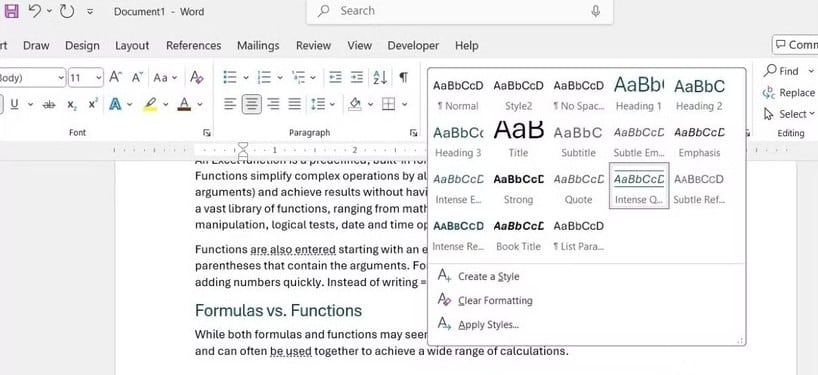
Open the Styles panel (Home tab → Styles). Select each heading in your document and check which Style it is using. If any heading shows as “Normal” or has a direct formatting override rather than a proper Heading Style applied, click the correct Style to apply it. For a full explanation of how Styles work and why they matter, see our guide to using Styles in Microsoft Word.
Important: Headings that appear visually correct but are formatted manually (rather than via Styles) will not appear in the table of contents and will not respond to global Style changes. This is one of the most common — and least obvious — multi-author formatting problems.
Step 2: Fix body text font inconsistencies
Use Edit → Find and Replace (Ctrl+H) with the Format option to find instances of unwanted fonts and replace them with your document’s standard body font. Alternatively, select all body text (Ctrl+A, then deselect headings) and apply the Normal Style to reset font and spacing to the document default.
Step 3: Standardise paragraph and line spacing
Select all body text and apply consistent paragraph spacing via Home → Paragraph → Spacing. Check that spacing before and after paragraphs is consistent throughout and that line spacing (single, 1.15 or 1.5) is uniform across all contributed sections.
Step 4: Reformat tables consistently
Work through each table and apply a consistent table style from the Table Design tab. Check borders, cell padding, header row formatting and caption style. Where tables have been individually formatted, strip the existing formatting and apply the standard table style from scratch.
Step 5: Fix page numbering
Page numbering problems in multi-author documents are usually caused by incorrect section breaks. Check the section break structure via View → Draft to see all breaks. Remove any unnecessary section breaks and reapply the correct numbering sequence. Our dedicated guide to fixing page numbering in Word covers this in detail.
Step 6: Update the table of contents
Once all heading Styles are correctly applied, right-click the table of contents and select Update Field → Update Entire Table. If headings still do not appear correctly, check that each one has the correct Heading Style applied rather than manual formatting.
How to Prevent Mixed Formatting in Future Documents
Fixing mixed formatting after the fact is always harder than preventing it in the first place. These practices significantly reduce the risk of formatting problems in multi-author documents.
Best practices for managing multi-author Word documents
Share a template file with contributors rather than asking them to draft in their own document and paste in
Set Word’s default paste behaviour to strip source formatting — File → Options → Advanced → Cut, Copy and Paste
Use Paste Special (Ctrl+Alt+V → Unformatted Text) when pasting from external sources
Train contributors to use the Styles panel for headings rather than manually changing font size and weight
Apply a company style guide in Word so all contributors are working to the same visual standard from the start
When to Use a Professional Service Instead
The manual steps above work well for short documents with relatively minor formatting problems. For longer, more complex documents — particularly those going to clients, boards or procurement panels — a professional service is usually the better choice.
| Document situation | Fix yourself | Use a professional |
|---|---|---|
| Under 20 pages, minor inconsistencies | ✅ Reasonable option | Optional |
| 30–60 pages, multiple contributors | ⚠️ Time-consuming | ✅ Recommended |
| 60+ pages, complex structure, many tables | ❌ High risk of incomplete fix | ✅ Strongly recommended |
| Going to a client, board or procurement panel | ❌ Too much at stake | ✅ Essential |
Our fix word document formatting service handles multi-author documents routinely — restoring consistent heading structure, resolving font and spacing conflicts, standardising tables, correcting page numbering and applying your brand template or style guide throughout. For business reports and corporate documents going to senior audiences, this is the standard approach most of our clients take.
Pricing is £1.95 per page with a £12 minimum. A 40-page multi-author report typically costs £78 and is returned within 24 hours. If you are not sure whether your document needs professional attention, our free document formatting audit will tell you exactly what is wrong — at no cost and with no obligation.
Fix your multi-author Word document today
Submit your document via our fix word document formatting service page and we will review it and provide a fixed quote. From £1.95 per page, turnaround from 12 hours, available 24/7 including weekends and bank holidays. Or start with a free formatting audit to see exactly what needs fixing first.
Frequently Asked Questions
References
- Microsoft (2025). Copy and paste text from another document. Microsoft Support.
- Microsoft (2025). Apply styles to text in Word. Microsoft Support.
- Microsoft (2025). Insert or delete a section break. Microsoft Support.
- Microsoft (2025). Set default paste options. Microsoft Support.
- Document Formatting Services (2026). Fix word document formatting service — scope and pricing.