Table of Contents
- How Word heading styles work — and why they matter
- How to diagnose a heading style problem
- Before and after — what correct heading styles look like
- How to fix heading styles in Word — step by step
- How to modify a heading style without losing structure
- When to use a professional formatting service
- Frequently asked questions
How Word Heading Styles Work — and Why They Matter
A Style in Word is a named set of formatting instructions. When you apply a Heading 1 Style to a piece of text, you are not just making it larger and bold — you are telling Word that this text is a top-level heading. Word uses that structural information to build the table of contents, power the navigation pane, apply global formatting changes and maintain the heading hierarchy throughout the document.
This is why manually formatting a heading — selecting the text, making it 16pt and bold — is not the same as applying a Heading Style. The text looks like a heading, but Word does not know it is one. It will not appear in the TOC. It will not respond to global Style changes. And if you change the font later, you will have to find and change every manually formatted heading individually.
Our complete guide to using Styles in Microsoft Word covers the full Styles system for business documents. This guide focuses specifically on diagnosing and fixing heading style problems. If your document has broader formatting issues beyond headings, our word document formatting service addresses the full range — heading structure, page numbering, tables, fonts and template compliance — as a single service at £1.95 per page.
How to Diagnose a Heading Style Problem
The fastest way to diagnose heading style problems is to use Word’s built-in tools rather than looking at the document visually. These three checks will tell you definitively whether your headings are using proper Styles or manual formatting.
Check 1: The Styles panel
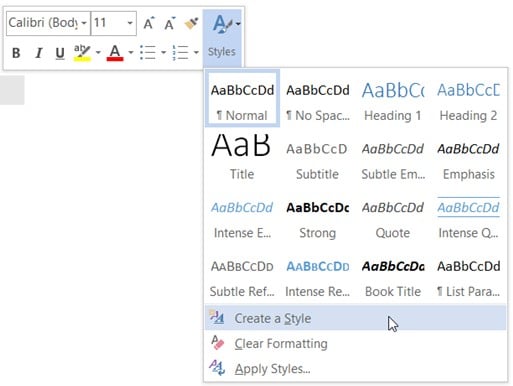
Click in a heading. Look at the Styles panel in the Home tab — what does it show? If it shows Heading 1, Heading 2 or Heading 3, the Style is correctly applied. If it shows Normal, Default or Body Text — or shows nothing — the heading has been formatted manually rather than using a Style. This is the root cause of most heading problems.
Check 2: The navigation pane
Open the Navigation Pane via View → Navigation Pane. If your headings are using proper Styles, they will appear here as a clickable outline of your document structure. If the Navigation Pane is empty or missing headings, those headings do not have Heading Styles applied.
Check 3: Update the table of contents
Right-click your table of contents and select Update Field → Update Entire Table. If entries disappear, appear incorrectly or the TOC does not match the document, the headings it should be pulling from are not using Heading Styles. This is the most visible symptom — but the underlying cause is always the same: manually formatted headings.
The key insight: A heading that looks correct visually is not necessarily structurally correct. The visual appearance of a heading and its structural identity in Word are independent. A 16pt bold Arial heading formatted manually looks exactly like a Heading 1 Style — but Word does not know they are the same thing. Only the Styles panel tells you the truth.
Before and After — What Correct Heading Styles Look Like
| What you check | ❌ Manually formatted headings | ✓ Heading Styles correctly applied |
|---|---|---|
| Styles panel when heading is selected | Shows “Normal” or blank | Shows “Heading 1”, “Heading 2” etc |
| Navigation pane | Empty or missing headings | Full clickable document outline |
| Table of contents | Missing entries or wrong page numbers | Matches all headings, updates automatically |
| Global font change | Does not affect manually formatted headings | Updates all headings using that Style instantly |
| Visual appearance | May look identical to correctly styled headings | Looks identical — but structurally correct |
How to Fix Heading Styles in Word — Step by Step
Diagnostic flow — start here
Click in a heading → check the Styles panel
→ Shows “Normal” or blank: heading is manually formatted — apply the correct Heading Style (see Step 1)
→ Shows “Heading 1” but TOC entry is wrong: Style is applied but has been overridden — clear direct formatting (see Step 2)
→ Shows “Heading 1” and looks wrong visually: Style definition needs modifying — adjust the Style, not the text (see Step 3)
→ Shows “Heading 1” and looks correct: heading is correct — update the TOC and move to the next heading
Step 1: Apply the correct Heading Style
Click in the heading text. In the Styles panel (Home tab), click the correct Heading Style — Heading 1 for top-level headings, Heading 2 for sub-sections, Heading 3 for sub-sub-sections. Do not apply direct formatting on top. If the heading now looks different from how you want it, that is a Style definition issue — fix it in Step 3, not by adding manual formatting back.
Step 2: Clear direct formatting overrides
If a Heading Style is applied but the heading still looks wrong — or the TOC still does not pick it up — there may be direct formatting overrides sitting on top of the Style. Select the heading text and press Ctrl+Space to clear character formatting. Then reapply the Heading Style. Alternatively, use the Clear Formatting button in the Home tab (the eraser icon in the Font group), then reapply the Style.
Step 3: Work through the document heading by heading
There is no shortcut for this in a document with many incorrectly formatted headings. Work from the beginning to the end — click in each heading, check the Styles panel, apply the correct Style if needed, clear overrides if the Style is already applied but not displaying correctly. For a long document, this process can take time — which is one reason our fix word document formatting service is often faster than a manual fix for documents over 30 pages.
Step 4: Update the table of contents
Once all headings have correct Styles applied, right-click the table of contents and select Update Field → Update Entire Table. Verify that all entries now match their headings and that page numbers are correct. If entries are still missing, check those headings again — one of them may still be showing Normal in the Styles panel rather than the correct Heading Style. See also our guide to fixing page numbering in Word if the page numbers in the TOC are incorrect.
How to Modify a Heading Style Without Losing Structure
A common mistake when fixing heading styles is to apply the Heading Style and then manually reformat the text to match the desired appearance — making it a slightly different size, changing the colour, adjusting the spacing. This recreates the problem: you have a Style applied but with direct formatting on top.
The correct approach is to modify the Style definition itself:
This is the correct way to customise heading appearance in Word. It keeps the structural integrity of the Style intact while changing the visual output. Our guide to applying a company style guide in Word covers how to use Style modification to implement brand standards throughout a document. If you need this applied to a business document at scale, our formatting service handles it as standard — submit your document and template and we do the rest.
When to Use a Professional Formatting Service
For short documents with a small number of incorrectly formatted headings, the steps above are achievable in a reasonable time. For longer documents — particularly those compiled from multiple contributors or converted from PDF — working through every heading manually is time-consuming and the risk of missing one is significant.
If your document is more than 30 pages, has headings contributed by multiple authors, or has been converted from PDF (which strips all Style information), our fix word document formatting service will rebuild the heading structure correctly throughout the document — along with fixing page numbering, TOC, font consistency, tables and any other formatting issues present. For business reports, board packs and corporate documents, we apply your company Style guide or template throughout as standard.
Pricing is £1.95 per page with a £12 minimum. If you are not sure what is wrong with your document, our free document formatting audit will identify every heading style problem — and every other formatting issue — within 24 hours at no cost.
Get your heading styles fixed by a specialist
Submit your document via our fix word document formatting service page for a fixed quote and turnaround from 12 hours. Or request a free formatting audit to get a complete picture of every issue in your document before committing.
Frequently Asked Questions
Why are my heading styles not working in Word?
The most common reason is that headings have been formatted manually — using direct font size and bold changes — rather than applying the built-in Heading Styles from the Styles panel. Manually formatted headings look correct visually but are not recognised as headings by Word, so they will not appear in the table of contents and will not respond to global Style changes. Click in a heading and check the Styles panel — if it shows Normal or blank, the Style has not been applied.
How do I fix heading styles in Word?
Click in each heading and apply the correct Style from the Styles panel — Heading 1 for top-level headings, Heading 2 for sub-sections, Heading 3 for sub-sub-sections. If the Style is already applied but overridden with direct formatting, clear the formatting with Ctrl+Space and reapply the Style. Once all headings are correctly styled, update the TOC by right-clicking and selecting Update Field. For more on how Styles work, see our guide to using Styles in Microsoft Word.
Why does my table of contents not match my headings?
Because the headings the TOC should be pulling from do not have Heading Styles applied. The TOC can only detect headings that are structurally identified as such via the Styles system — it cannot read manually formatted text. Apply the correct Heading Styles throughout the document, then update the TOC via right-click → Update Field → Update Entire Table.
How do I change the look of a heading style without losing structure?
Right-click the Heading Style in the Styles panel and select Modify. Change the font, size, colour or spacing in the Modify Style dialogue. Do not apply direct formatting on top of the Style — modify the Style definition itself. This updates every heading using that Style throughout the document simultaneously, without breaking the structural integrity.
When should I use a professional service to fix heading styles?
For documents over 30 pages, documents compiled from multiple contributors, or documents converted from PDF where all Style information has been stripped, a professional word document formatting service is typically faster and more reliable than a manual fix. For any document going to a client, board or senior audience, it is worth getting it done correctly rather than attempting a partial repair.
References
- Microsoft (2025). Apply styles to text in Word. Microsoft Support.
- Microsoft (2025). Customize or create new styles in Word. Microsoft Support.
- Microsoft (2025). Create a table of contents in Word. Microsoft Support.
- Microsoft (2025). Use the Navigation pane in Word. Microsoft Support.
- Document Formatting Services (2026). Fix word document formatting service — scope and pricing.