Table of Contents
- Template vs document — what the difference means in practice
- What a properly built Word template contains
- How to build a Word template step by step
- What most Word templates get wrong
- How to use and distribute the template across your team
- Getting a template built professionally
- Frequently asked questions
Template vs Document — What the Difference Means in Practice
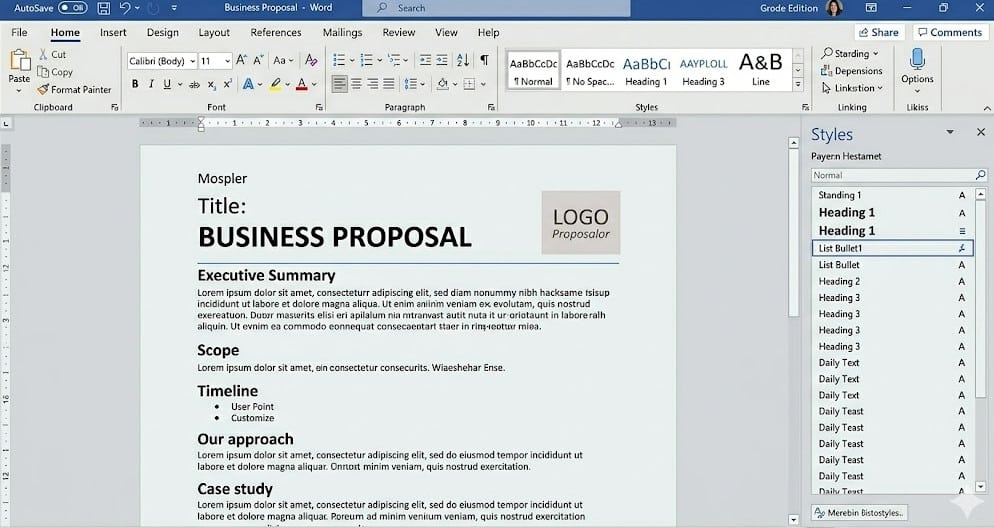
A Word template (.dotx) stores formatting settings — Styles, margins, fonts, headers, footers — but no content. When someone creates a new document from the template, Word copies the template’s settings into a new .docx file, leaving the template unchanged. The new document inherits all the formatting; the template remains pristine for the next person to use.
| Word template (.dotx) | Word document (.docx) | |
|---|---|---|
| Contains | Formatting settings, Styles, margins, headers, footers | Content — text, tables, images |
| Purpose | Starting point for new documents — formatting applied automatically | The actual document produced and distributed |
| What happens when opened | Word creates a new untitled document with the template’s settings | Opens the document for editing |
| How updated | Open the .dotx file directly → edit → save. All future documents reflect the update | Open the .docx → edit → save as normal |
This distinction matters because many businesses distribute a formatted .docx as their “template” — which means every user opens, edits and overwrites it. A proper .dotx template cannot be accidentally overwritten and always produces a fresh document with the correct settings.
What a Properly Built Word Template Contains
A template that actually enforces consistent formatting must configure the following elements correctly. Each one is part of the Word Styles system — not direct formatting applied on top.
Essential
Essential
Essential
Essential
Recommended
Recommended
Recommended
How to Build a Word Template Step by Step
What Most Word Templates Get Wrong
| Mistake | Why it causes problems | The fix |
|---|---|---|
| Saving as .docx not .dotx | Users overwrite the “template” when editing — no master version is preserved | Always save template files as .dotx |
| Formatting headings visually without applying Styles | TOC does not work, global style changes do not apply, heading hierarchy breaks | Configure Heading Styles — never manually format headings in a template |
| Not setting page numbering in the footer | Every document requires page numbers to be manually inserted | Insert automated page numbers in the template footer |
| Leaving the default Normal Style (Calibri 11pt) unchanged | Documents start with the wrong font — users apply brand font manually, inconsistently | Configure Normal Style with brand font before saving the template |
| Storing the template locally only | Team members cannot access it and continue to create documents without the template | Save to shared drive or SharePoint; tell the team where to find it |
The most common template failure: A template that makes headings look correct visually — but uses manual formatting rather than Heading Styles. This is the single most frequent cause of table of contents failures and heading inconsistency in documents that were supposed to be formatted from a template. If your headings do not appear in the Navigation Pane, your template has this problem. See our guide to fixing heading styles in Word for how to correct it.
How to Use and Distribute the Template Across Your Team
To use the template: Navigate to the .dotx file in the shared location and double-click it. Word opens a new untitled document with the template settings applied. Name and save this new document as a .docx — the template file remains unchanged.
To distribute: Share the file location with all team members and explain that they should always start new documents by opening the template — not by copying an existing document. Copying an existing document is the most common way formatting inconsistencies propagate, because every document someone copies from was itself potentially inconsistently formatted.
To update the template: Open the .dotx file directly (File → Open → navigate to the file). Make your changes — update a Style, change the logo in the header, adjust margins. Save and close. All documents created from the template in the future will use the updated settings. Existing documents are not affected.
When team members paste content from other sources: Train them to always paste using Paste Special (Ctrl+Alt+V) → Keep Text Only. This strips external formatting and applies the document’s Normal Style automatically. Pasting with source formatting is the primary way brand fonts and spacing get overwritten in documents produced from a template. Our guide to applying a company style guide in Word covers this and other practical steps for enforcing formatting standards across a team.
Getting a Template Built Professionally
Building a Word template correctly — with all Styles properly configured, heading hierarchy working, header and footer set up, table styles defined and page layout correct — takes specialist knowledge of Word’s formatting system. For many organisations, the time investment in getting it right is better spent on a professional build.
Our corporate document formatting service builds custom Word templates to client brand guidelines and style standards. We configure every Style, set up margins, headers, footers and table formats to specification, and deliver a .dotx template your team can use immediately — with guidance on how to distribute and use it correctly.
For documents that have already been produced without a template — and need to be brought into line with a new one — our business document formatting service applies your template to existing documents at £1.95 per page. This is the most efficient way to standardise a document suite that has accumulated inconsistencies over time. If you are unsure what condition your current documents are in, our free document formatting audit will assess them within 24 hours at no cost.
Get a Word template built to your brand standards
Contact us via our corporate document formatting service page to discuss a custom template build. Or submit an existing document for formatting via our business document formatting service — from £1.95 per page, turnaround from 12 hours, available 24/7.
Frequently Asked Questions
How do I create a Word template for business documents?
Set up page layout, configure the Normal Style with your brand font and spacing, define Heading Styles 1–3 to match your brand, set up header and footer with logo and page numbering, configure a table style, then save as Word Template (.dotx). Every document created from this template will start with consistent formatting applied automatically. See our step-by-step guide above for full detail.
What is the difference between a Word template and a Word document?
A Word template (.dotx) stores formatting settings — Styles, margins, fonts, headers, footers — but no content. Opening a template creates a new untitled document with those settings, leaving the template unchanged. A Word document (.docx) is a content file that gets saved and overwritten. Using a .dotx template prevents the master formatting from being accidentally altered.
Why do most Word templates not work properly?
Most templates fail because headings are visually formatted rather than linked to proper Heading Styles. This means the TOC does not work, global style changes do not apply, and heading structure breaks when content is compiled from multiple contributors. A properly built template embeds all formatting in the Styles system. Our guide to fixing heading styles in Word explains how to identify and correct this.
Can I use a Word template to apply my company brand?
Yes — a Word template is the standard mechanism for applying brand fonts, colours and heading styles consistently. The template defines Normal and Heading Styles with the brand settings and includes the logo in the header. When team members create documents from the template, the brand is applied automatically. Our guide to applying a company style guide in Word covers this in full.
Can you build a Word template to our brand guidelines?
Yes. Our corporate document formatting service builds custom Word templates to client brand guidelines. We configure all Styles, margins, headers, footers and table formats to specification and deliver a .dotx template ready to use. Contact us to discuss your requirements.
References
- Microsoft (2025). Create a template in Word. Microsoft Support.
- Microsoft (2025). Apply styles to text in Word. Microsoft Support.
- Microsoft (2025). Customise or create new styles. Microsoft Support.
- Microsoft (2025). Set default paste options in Word. Microsoft Support.
- Document Formatting Services (2026). Corporate document formatting service — template builds and document standardisation.